Setting a Preces and Responses: The Features Behind a Demanding Choral Score
A case study — setting a full Preces and Responses in QuickStave, and the notation features that made an alternating cantor-and-choir score with shifting metre, dense lyrics, and chromatic harmony possible.
Every notation editor looks capable when you feed it a hymn tune. The real test is the awkward repertoire — the scores that bend the rules of the page. So when I wanted to put QuickStave through its paces, I reached for one of the most demanding things a choir sings: a Preces and Responses.
If you’ve not sung in an Anglican choir, the form is a conversation. A cantor (or priest) intones a versicle, and the choir answers in full harmony — back and forth, versicle and response, for the length of the service. On the page that means a score that keeps changing shape: a single chanting line one moment, four-part SATB the next, the metre stretching to fit the words rather than the words being squeezed into the bar.
This post is a case study. I set the whole piece in QuickStave, and along the way I’ll show you the features we built to make a score like this not just possible but pleasant to write.
The piece
I wrote the Preces and Responses in 2025 with a few goals in mind. I wanted it to be thematically rich, and complementary to my Magnificat and Nunc Dimittis, but not demanding in range for the singers. I also wrote it to be strictly four part with no division, so it could be performed with as few singers as strictly necessary — or when a choir has a shortage of singers in a single part. It was first performed in Kristiansand Cathedral, Norway in December 2025, and was very well received.
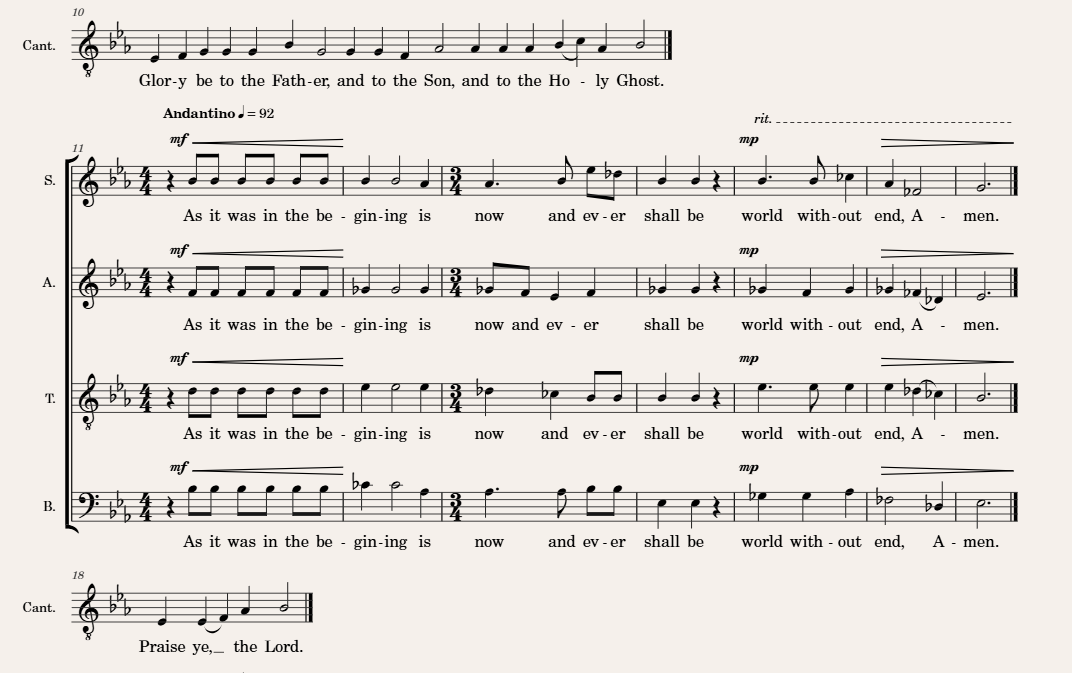
It also makes a good stress test for notation software. Look at the cover image and you can already see four things that trip up most editors:
- The texture changes per system — solo cantor lines and full SATB responses, never both staves where they’re not needed.
- The metre shifts mid-phrase, from 4/4 to 3/4, to follow the natural rhythm of the text.
- Every note carries a word, with melismas slurred across syllables.
- The harmony is chromatic — flats and naturals everywhere — with cautionary accidentals placed by hand, not forced by the software.
Each of those is a feature. Let’s take them in turn.
Different forces on every system
The defining challenge of a Preces and Responses is that the number of voices changes constantly. The cantor sings alone; the choir answers in four parts; the cantor returns. If every system showed all five staves, the solo passages would be a wasteland of empty bars.
The tool that solved this — and the one I leaned on most while setting the piece — is the new Split command on the Bar palette (F8).
Split is how you enter a system or page break, but it’s far more than that. Each split begins a new section, and the section carries its own settings:
- A heading and subheading for the new system
- Whether to restart bar numbers
- Whether the last line of the section is ragged — left short rather than stretched to fill the full width of the score
- Which instruments are visible in the section — always shown on the section’s first line, hidden when they’re empty, or always visible — with a default you can define per instrument and reuse across sections
That last control is what makes a Preces and Responses tractable. For this piece I set the Staff Visibility of every instrument to “Only when it has notes”, and that single choice covers the entire score: the cantor’s intonations collapse to a single line, the choral responses open out into full SATB, and no staff ever sits empty.
There’s an obvious question lurking here: if a staff is hidden, how do you edit it? You can show all hidden staves at any time with a toggle on the View menu — but QuickStave is very forgiving, and will always show the current staff if the cursor is in it. Navigating between parts, or using the cursor keys to move to a hidden bar, means you rarely have to use the toggle at all.
Final barlines that breathe
Split begins a section; a final barline ends one. The barline type is set from the same Bar palette (F8), and choosing a final barline does two quiet but important things beyond drawing the heavier line:
- It adds a 0.6-second delay to playback, so the music settles before the next section begins rather than running straight on.
- It clears the preamble that a system break would otherwise repeat at the start of the next line — the clef and key signature.
Together they make each versicle and response feel like a self-contained unit, which is exactly right for a Preces and Responses. The same mechanism has a broader use, too: it’s what lets you write a piece of several movements in a single score, each movement starting clean and pausing properly before the next.
Metre that follows the words
Liturgical text doesn’t scan to a fixed pulse. The metre shifts mid-phrase, from 4/4 to 3/4 and back, to follow the natural rhythm of the text. Crucially, the Cantor part has no metric marking at all.
The Time Signature button on the Bar palette (F8) is where all of this is set, and it’s far more flexible than the name suggests. For any signature you can:
- Define the grouping of the beats, and QuickStave beams each group automatically — no manual beaming
- Hide the time signature from display while it still governs the bar
- Convert a bar into a pickup (anacrusis), where its actual duration is shorter than the signature implies
The Preces and Responses makes full use of every one of these. The cantor’s “no metric marking” isn’t a special unmetered mode — it’s an ordinary time signature, sized to cover the whole measure, with its display simply switched off. The bar stays well-formed and plays back correctly; it just shows no metre, so the chant reads as free as it sounds.
And because a time signature governs everything up to the next one, changing it triggers reflow only as far as that next signature — a late edit to one section never ripples through the whole score. That saved a great deal of work.
Measures that wrap to the screen
A side effect of giving the cantor a whole phrase in a single bar is that the bar can get very wide — easily wider than a phone screen. QuickStave now decides intelligently where to split a measure so that it spans multiple systems, wrapping the bar onto the next line rather than forcing you to scroll sideways to reach the end of it.
It sounds like a small thing, but it’s what makes these long chant passages not just possible but pleasant to read on a mobile phone. The score wraps to whatever screen you’re holding, the same way a paragraph of text would.
Lyrics, syllables and melismas
A choral score is mostly words. Every one of the four parts here carries the full text, hyphenated into syllables — “be‑gin‑ning”, “with‑out” — and stretched with extension lines where a single syllable runs across several notes (“Praise ye,_ the Lord”).
Lyric entry lives on the Text palette (F7). Choose the position of the line you want to edit and just start typing. Press hyphen to move to the next syllable, and space to extend a melisma across the following notes. It’s the same rhythm of typing you’d use in any notation editor, and it stays out of your way.
All four parts sing the same text, and there’s no sense typing it out four times over. Like any good editor, QuickStave lets you copy and paste lyrics from one part onto another:
- On the Select palette (
F6), mark what you want — the Mark button for an area, the S key for a whole staff, or the usual Shift + Arrow to extend the selection by hand. - Press Filter and narrow the selection to just the lyrics.
- Copy, move to the new part, and Paste.
Copying lyrics isn’t unusual in itself — most editors manage that. What isn’t a given is how gracefully the words land once they’re pasted. QuickStave does its best to reflow the pasted text against the events actually in those bars, so even when the rhythms differ between parts, you rarely have to make many adjustments afterwards.
Accidentals on your terms
This is harmonically rich writing — flattened notes, naturals cancelling them, the kind of chromatic movement that can leave a singer guessing if the accidentals aren’t spelled out. So I added cautionary accidentals wherever necessary, using the accidental button on the Note palette (F1).
That I had to add them is the point. QuickStave emits only the strict minimum the rules of notation require, and never throws in courtesy accidentals you didn’t ask for. When you do want one — to steady a singer through a chromatic turn — you put it there yourself, and because you put it there you can take it away again. In a piece this chromatic, that control matters: every cautionary on the page is there because I decided the choir needed it, not because the software guessed.
Trailing edits, so you never lose momentum
The flip side of placing all those accidentals by hand is the temptation to stop after every note and fix it — and in chromatic writing especially, it’s important not to lose forward momentum. QuickStave has a trailing edit system for exactly this. When your cursor is on the rest immediately after a note, the editing commands still act on that note: octave up or down, a diatonic step up or down, accidentals, ties, articulations, and more all apply to it, with no need to navigate back. You keep moving forward and still shape the note you’ve just left.
Tempo and expression
The opening is marked Andantino ♩ = 92, with a rit. carried on a dashed line into the cadence, and the dynamics move with the phrase — mf swelling and tapering on hairpins, easing back to mp for the response.
Tempo changes consistently throughout the piece, and sometimes — particularly in the cantor’s free chant — we need hidden tempo changes: markings that shape playback so it sounds fluid and natural, without ever appearing on the page. The cantor’s free chant especially relies on this. A printed tempo over every phrase would clutter the line, but playback still has to breathe, so the score stays clean while the performance underneath it bends with the words.
All of this comes from the tempo menu on the Text palette (F7), which offers far more than a single mark. You can add an absolute tempo (a fixed ♩ = 92), a gradual one (an accelerando or rit.), a relative change, a reset, an equation (a metric modulation — one note value equal to another), or tap the tempo in by ear — and pull up any tempo you’ve already used in the piece. The absolute tempo is where those hidden markings come from: its dialog has an option to keep it off the page while it still drives playback.
A gradual tempo has to go somewhere, so you specify its end point. There’s a second, often quicker way to do the same thing: select the range you want the change to span first, then apply the tempo, and QuickStave fits it to the selection.
That select-then-apply pattern is the real workhorse here, because it isn’t limited to tempo. Anything that spans several notes — hairpins, slurs, pedal lines — can be added the same two ways: select the range and apply, or choose the marking and set its end point by hand. And the selection can reach across parts. To place a hairpin under all four voices at once, select the range across all four staves and apply it — QuickStave adds every hairpin in a single step.
The same selection works for marks that sit at a single point, not just spanning ones. Specify a text dynamic with a range selected and QuickStave places it at the start of the range in every selected part; add a caesura or breath mark the same way and it appears at the end of the range, across all of them at once. Mark the breath across the choir once, and all four voices breathe together.
Did the tool disappear?
QuickStave’s job is to never slow you down — never get in the way of creating music. You do not have to switch modes, or think about what layer you are looking at. QuickStave keeps this forward momentum by not forcing you to step back: you correct notes using the trailing edit feature, and splits — along with the parts shown for each split — are exactly where they appear in the score, with no need to go hunting.
On PC, wherever your hand is, you have the power. It can be driven entirely by keyboard, without ever going to the mouse, or entirely by mouse, or any combination of the two — whatever feels most comfortable. I switched between them a lot while working on this piece, but never consciously worried about how to do what I wanted. I even made some adjustments on my mobile phone, and knew that the interface felt the same.
It was a pleasure to score my Preces and Responses, not least because I think the final rendering and playback look and sound so professional. I hope you feel the same way about your music.
— John Quick