Editing the note before your cursor
After you enter a note, your cursor moves on to the rest that follows — press an accidental, octave, or tie key without moving back, and it edits the note you just entered instead of doing nothing.
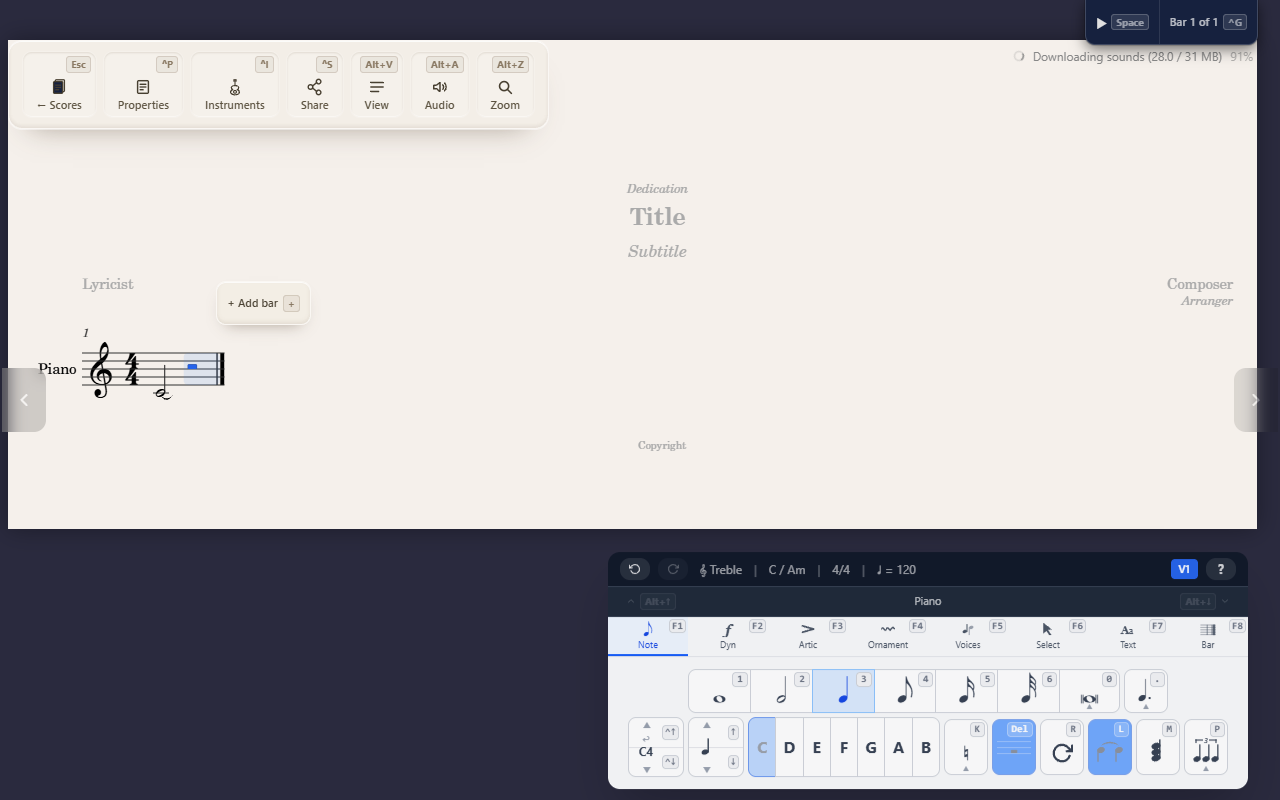
Entering a note moves your cursor on to the rest that follows it — that’s normal, it’s how you keep entering notes one after another. But it means the cursor is very often sitting on a rest right after you’ve placed the note you actually want to adjust. Pressing an accidental, an octave shift, or a tie key at that point used to do nothing, since there was no note under the cursor to apply it to.
Trailing edits fix that: if your cursor is on a rest, these actions now reach back to the note immediately before it instead.
What trails back
Press any of these without moving the cursor away from the rest, and they apply to the preceding note:
- Accidentals (
F1 K— sharp, flat, natural, and the rest) - Octave shift (
Ctrl+↑/Ctrl+↓) and step shift (↑/↓) - Tie (
F1 L) — ties the preceding note forward, even across the rest - Repeat (
F1 R) is the one exception: instead of editing the preceding note, it fills the rest with a copy of it
Your cursor doesn’t move for any of these except Repeat, where the rest you were on becomes the new note.
How you know it’s available
The Note palette’s buttons for these actions are normally greyed out when your cursor is on a rest — there’s nothing to act on. When a trailing target exists, they light up instead, and show that note’s state (the octave box reflects its pitch, for instance) rather than the rest’s. If a button stays disabled, there’s no note immediately before the cursor to reach back to.
What doesn’t trail
Duration, dots, and Delete (turning a note into a rest or back) all act
on the rest itself — that’s the correct target for them, not a gap this
feature closes. Trailing edits also only apply when your cursor is a
single collapsed position; with a range selected, every command works
against the whole selection as usual — see Selecting notes and ranges.
Tips
- If an accidental or octave key doesn’t seem to do anything, check whether your cursor is on a rest with no preceding note — that’s the one case trailing edits can’t help, since there’s nothing to reach back to.