Selecting notes and ranges
Your cursor is already a selection — extend it to a range with Shift, a whole measure at a time with Ctrl+Shift, or a whole staff with a triple-click.
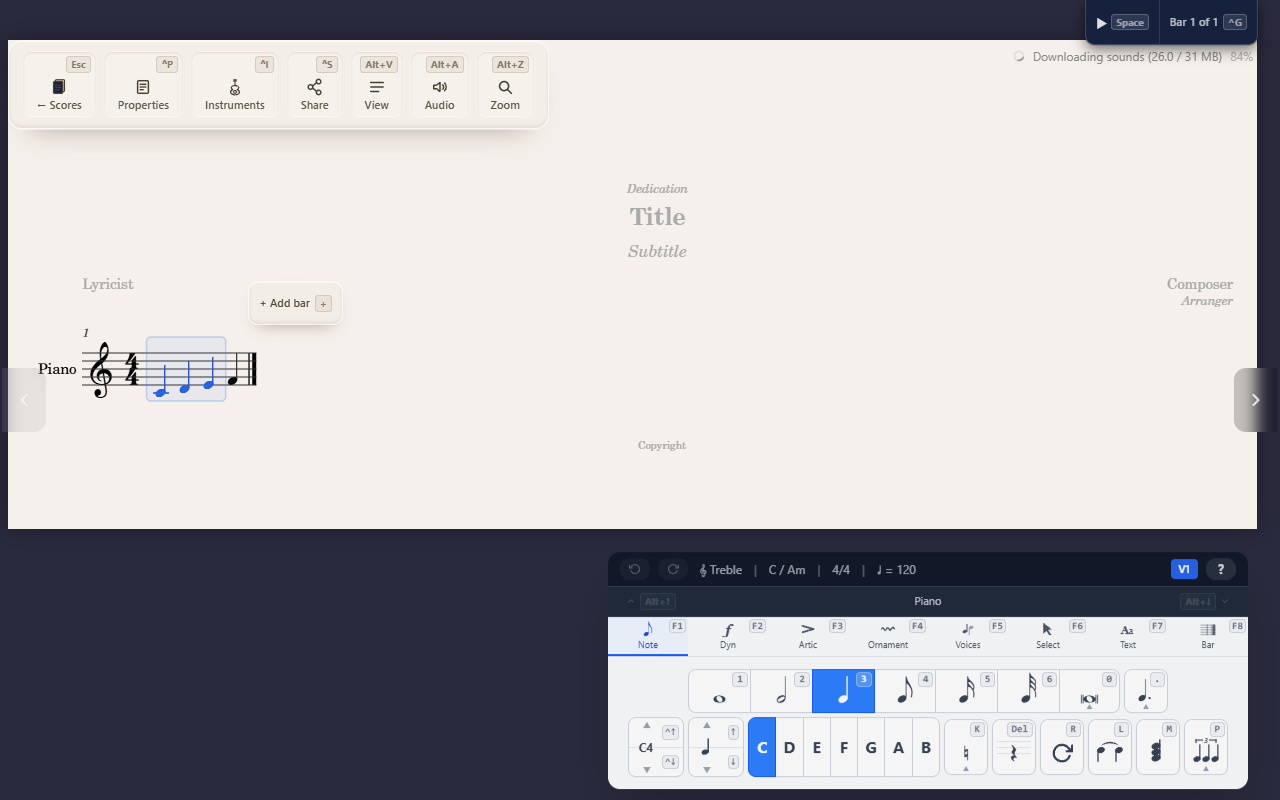
The cursor you move around with the arrow keys isn’t separate from selection — it is one, just a one-note selection. Every command in QuickStave works the same way: select first, then act, whether “select” means the cursor sitting on one note or a whole passage highlighted across several staves.
Extend a selection
Hold Shift while moving the cursor to grow the selection instead of
moving past it:
Shift+←/→— extend by one note or rest.Shift+↑/↓— extend to include the staff above or below.
The fast way to select a measure
Ctrl+Shift + ←/→ extends the selection by a whole measure at a time —
the single most useful selection shortcut, and the one worth learning
first if you only learn one. Ctrl+Shift+Home/End extends all the way to
the start or end of the staff, and Ctrl+A selects the entire score.
Mouse and touch
Click sets the cursor; Shift+click extends a selection to that point,
the same as Shift+arrow. Double-click a measure to select the whole
thing; triple-click a staff to select all of it. On touch, where there’s
no drag-to-select, use the Select tab’s Mark button instead: it
anchors the selection where your cursor is, then any navigation — tap,
swipe, whatever you’d normally use to move around — extends it until you
confirm.
Selection sticks around
A selection isn’t tied to whichever palette tab is open — make one, then
switch between F1–F8 tabs and try different commands against it without
reselecting. It clears when you move the cursor or click without holding
Shift.
Tips
- Want to select everything on one staff without a range gesture? Use
Select Staff on the Select tab (
F6 S). - A selection is what “select first, then act” always refers to elsewhere in these guides — including the automatic one-note selection your cursor already gives you when nothing else is highlighted.