Entering notes
Add notes by selecting a beat and pressing a duration key, then setting the pitch — every duration and action on the Note palette prints its own shortcut.
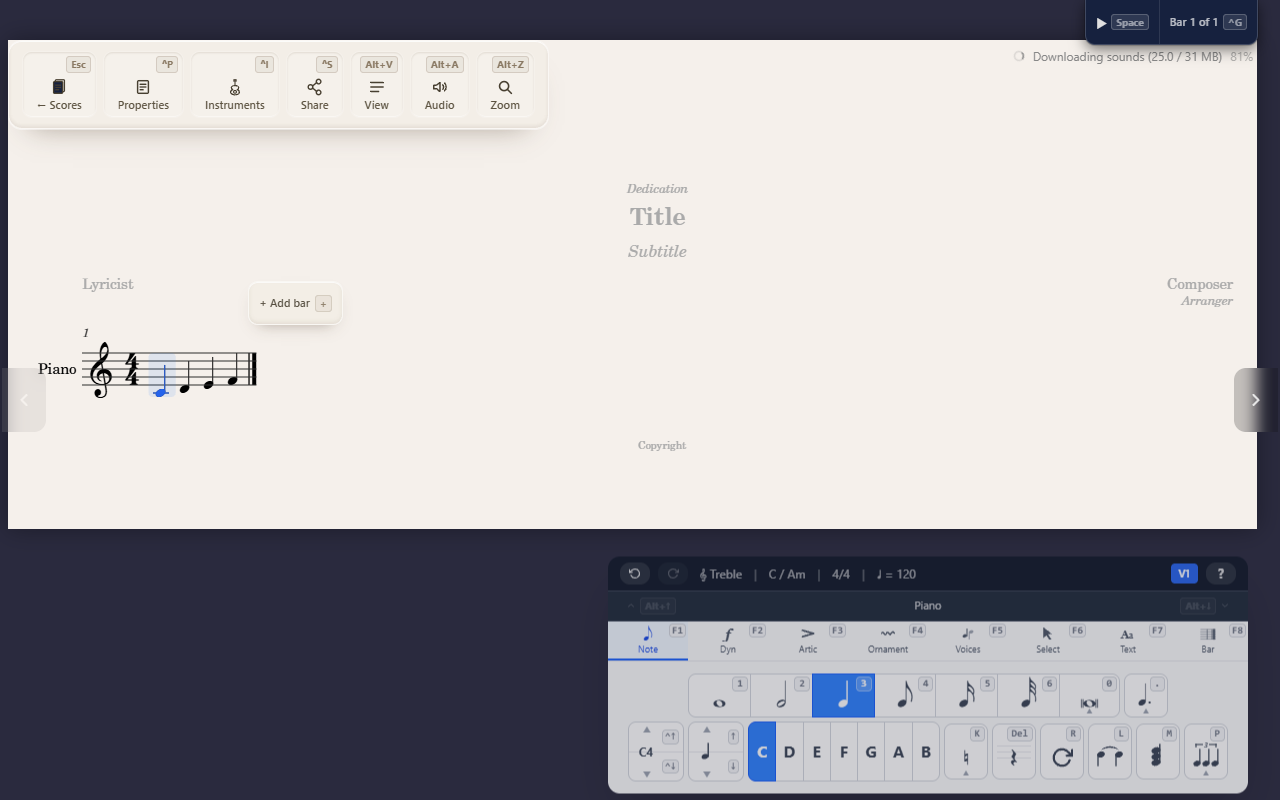
Notes go in one beat at a time: pick where the note lands, choose how long it is,
then set its pitch. Every duration and action is on the Note palette (F1), with
its key printed on the button — so you can read the shortcut off the screen until
it’s muscle memory.
Set the duration
Select a beat, open the Note palette with F1, then press a duration key:
3— quarter note (crotchet)2— half note (minim)4— eighth note (quaver)0then1/2/3— the longer or rarer values
The duration is sticky: every note you enter keeps that length until you change it.
Add a dot
Press . then the dot count. Dots toggle — press the active dot again to clear
it.
Turn a note into a rest
Press Delete to replace the selected note with a rest of the same duration.
Tie into the next note
Press L to tie the selected note into the one that follows (press again to
clear). Use a tie to carry a note across a barline or beat group. A tie joins
the next note of the same pitch even when it is spelt differently, such as
F♯ into G♭.
Flip a stem
Press X to point the selected note’s stem the other way. A beamed note flips
with its whole beam group — a beam can’t point two ways at once. Press X
again to hand the note back to the engine, which picks a direction from where
the note sits on the staff and from the beam group it belongs to — so a
flipped stem is stored only while you actually disagree with that choice. The
button lights while a note carries your direction rather than the engine’s.
Select a range first and X flips every beam group it touches, each from its
own direction.
Tips
- Chord mode (
M) stacks the notes you enter onto the same beat instead of replacing what is there or moving on — hold a chord together. It works from a rest as well as on a note, and applies to a MIDI keyboard too. - To build a chord by interval instead of by note name,
Alt+a number adds that interval above — see Building chords by stacking intervals. - Shift the pitch by a step with
↑/↓, or by an octave withCtrl+↑/Ctrl+↓. - Want to enter several notes at once, or select a whole measure instead of one note at a time? See Selecting notes and ranges.
- If an accidental, octave shift, or tie doesn’t seem to apply to the note you just entered, your cursor is probably sitting on the rest right after it — see Editing the note before your cursor, which is exactly for that case.