Transposing a selection
F6 T opens a dialog to transpose the current selection chromatically, diatonically, or by a named interval, with an independent direction and octave count.
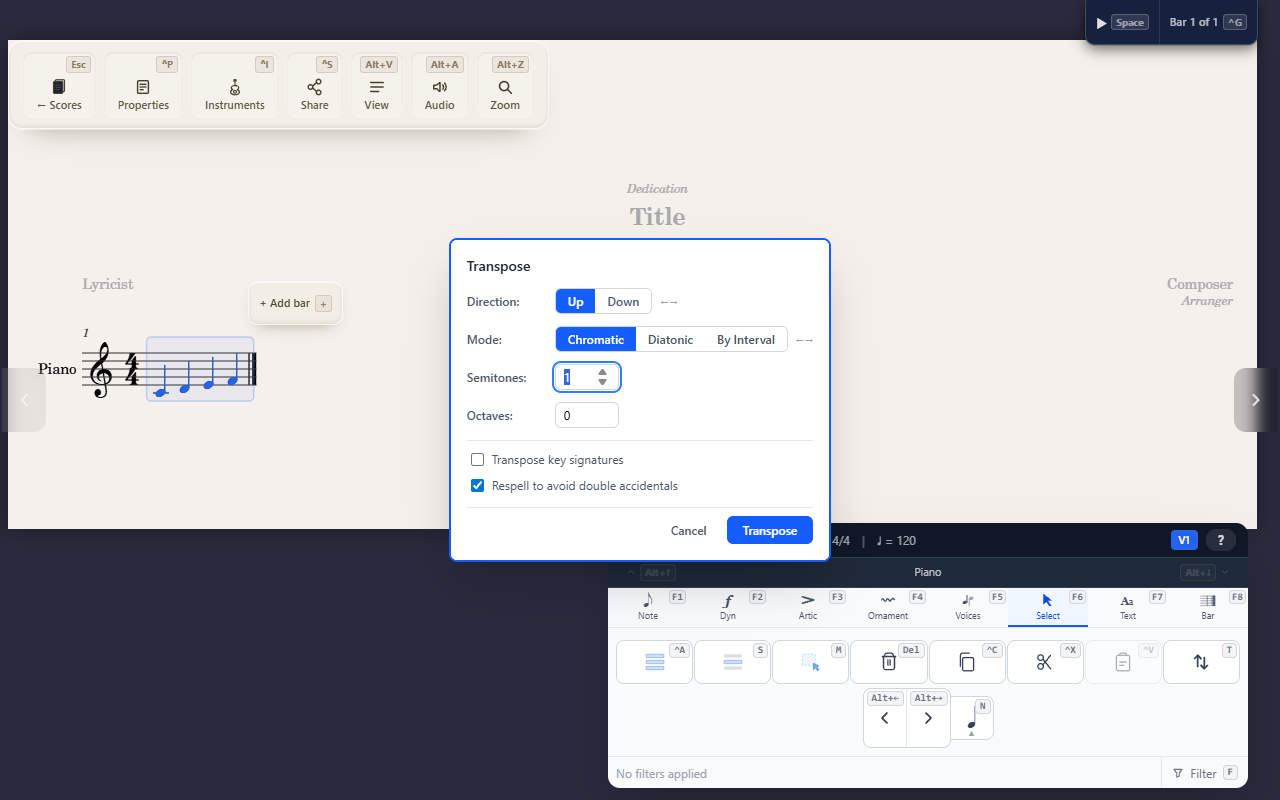
F6 T opens the Transpose dialog for whatever you currently have
selected — make a selection first (see Selecting notes and ranges);
this doesn’t teach that part again.
Choosing how to transpose
Three modes, each with its own Direction (Up/Down) toggle and a separate Octaves count (0–9, added on top of whatever the mode itself moves):
- Chromatic — by a number of semitones.
- Diatonic — by a number of scale steps, following the key signature.
- By Interval — a named interval (minor 2nd through perfect octave), set by quality and size rather than a raw number.
Two checkboxes affect the result: Transpose key signatures (moves the score’s key signature along with the notes) and Respell to avoid double accidentals (checked by default, keeps spellings like F𝄪 from appearing where a plain G would do).
Tips
- If you have an active filter (see Narrowing what a selection affects), a transpose on a real range selection only touches the events the filter allows — a single collapsed cursor position ignores the filter and transposes just that one event.