Adding tempo markings
Eight tempo categories under F7 T — each affects playback differently, from a hard BPM value to a gradual interpolated change to a swing feel.
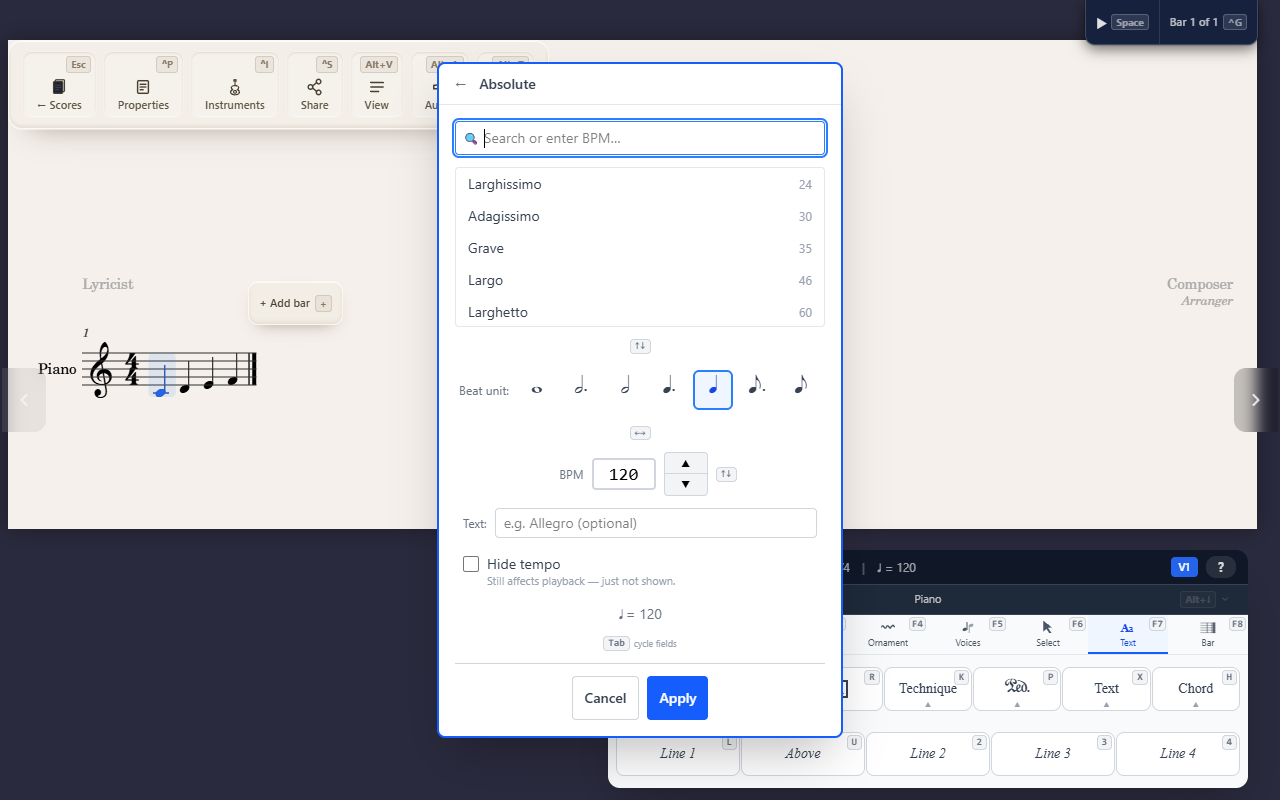
F7 T opens the tempo editor at the cursor, with eight categories — each
one affects playback differently, not just how the marking looks on the
page.
The eight categories
-
Used in Score (
U) — reuses a tempo already present elsewhere in the score; picking one reapplies it exactly. -
Tap Tempo (
T) — tap along and QuickStave averages your taps into a BPM. -
Absolute (
A) — a searchable list of standard tempo names (each with an editable representative BPM) plus a beat-unit selector; this is a real, concrete BPM value driving playback. A “Hide tempo” option keeps it silent on the page while still affecting playback. -
Gradual (
G) — rit., accel., and similar terms, applied as a spanner across a passage (pick the end point the same way as any other spanner). Playback actually ramps the tempo smoothly across that span rather than jumping at the end. -
Relative (
R) — più mosso, meno mosso, and similar terms. This applies an instant percentage change to the current tempo at that point — no BPM value is stored, just a relative shift. -
Reset (
S) — a tempo, Tempo primo, and related terms restore an earlier tempo in the piece (a tempo reverts to whatever tempo was most recently in effect; Tempo primo/Tempo I return to the very opening tempo). -
Equation (
E) — metric modulation (e.g. dotted quarter = quarter): states that one note value now equals another in speed, and QuickStave computes the resulting BPM for you. -
Feel (
F) — swing, shuffle and straight. Unlike the others this one does not change the speed: it changes where the off-beats land inside each beat. See Swinging the eighths for the full picture.
Removing
F7 T X removes the tempo marking at the cursor. A feel marking is
removed from the Feel panel’s own Remove button instead.
Tips
- Reach for Absolute when you need a specific, guaranteed BPM, and Relative when you just mean “a bit faster/slower from here” without committing to a number.
- A tempo and a feel set on the same note print as one line — Medium Swing ♩ = 132.