Using the palette
The palette under the score holds every editing tool in eight tabs, F1 to F8, and F10 shrinks it to a button in the corner when you want more of the score.
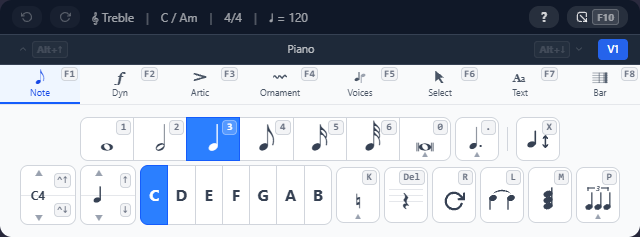
The palette appears under the score whenever a note or bar is selected. It holds every editing tool, grouped into eight tabs. With a keyboard, each button shows its key, so you can read the shortcut off the screen.
The top bar
From left to right:
- Undo and Redo (
Ctrl+ZandCtrl+Y). - The current bar’s clef, key, time signature and tempo. Tap one to change it: the clef opens the clef menu, the key and time signature open their pickers, and the tempo opens the tempo editor. On a narrow screen, a long key, time or tempo is shortened with ”…”.
- ? opens the command palette, where you can search for any command
and see its shortcut. Pressing
?does the same. - The minimise button shrinks the palette to a button in the corner
(see below). Its key,
F10, is printed on it.
The staff strip
Under the top bar:
- The arrows move the cursor to the staff above or below (
Alt+↑andAlt+↓). An arrow is greyed out when there’s no staff in that direction. - Between the arrows is the name of the staff you’re on.
- The voice badge at the right end shows which voice you’re entering
notes into, V1 to V4, in that voice’s colour. Tap it to move on to
the next voice, or press
Ctrl+1toCtrl+4to choose one.
The tabs
Press a tab’s function key, or tap the tab:
F1Note: durations, rests, accidentals, ties and tuplets.F2Dynamics: dynamic marks and hairpins.F3Articulations: staccato, accents, fermatas, breath marks and noteheads.F4Ornaments: grace notes, trills, slurs, glissandos, octave lines and tremolos.F5Voices: moving and swapping notes between voices.F6Select: copying, pasting, nudging, transposing and filtering a selection.F7Text: lyrics, chord symbols, expression and technique text, tempo markings, rehearsal marks and pedalling.F8Bar: clefs, key and time signatures, barlines, repeats and voltas.
A plain key does what the open tab shows for it: 3 is a quarter note on
the Note tab and p on the Dynamics tab.
Minimising the palette
Tap the minimise button, or press F10, to shrink the palette to a square
button in the bottom-right corner. The square shows the tab you’re on. Tap
it, or press F10 again, to bring the palette back.
While the palette is minimised:
- Every shortcut still works.
F1toF8switch the tab, and the square shows the new one. - A menu you open with a key appears in the square’s place.
- A slur, hairpin, lyrics or anything else with its own bar shows that bar in the corner until you finish, then the square comes back.
- The arrows at the sides of the screen still move the cursor. On a phone, the score has the whole screen to move around in.
QuickStave remembers your choice, so the palette is still minimised the next time you open a score on this device.