Playing notes in from a MIDI keyboard
Connect a MIDI keyboard or drum pad and play notes straight onto the staff, one step at a time — pitch from the key, duration from the Note palette.
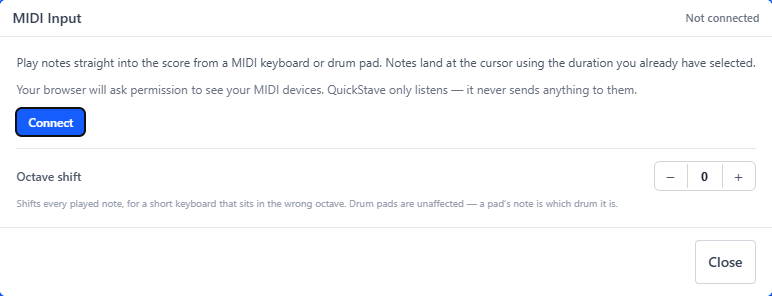
If you have a MIDI keyboard or drum pad, you can play notes in instead of typing them. Each note you play lands at the cursor and the cursor moves on, exactly as if you had pressed a note-name key — so everything else about note entry works the same way.
Connect a device
Open the MIDI panel from the MIDI pill above the score, with Alt+M, or
by searching “MIDI” in the command palette (^K).
Then press Connect. Your browser asks once whether QuickStave may see your MIDI devices; after you allow it, the device reconnects on its own every time you return. The panel’s header shows where things stand — Not connected, Connected, or No device if you have given permission but nothing is plugged in.
If more than one device is attached, pick the one you want in the panel. The choice is remembered on that computer.
What playing a note does
The note’s pitch comes from the key you play. Everything else comes from the palette, as usual:
- Duration is the sticky duration on the Note palette — press
3for a quarter note and every note you play is a quarter note, however briefly you press the key. Holding a key longer does not make a longer note. - Accidentals are spelled to the current key signature. A black key in D
major is written as the sharp that key calls for. The exception is a note
outside the key a semitone from the single note you played just before it:
it takes a sharp going up and a flat going down, so in F major F, F♯, G
climbs and G, G♭, F falls. A note you return to in the same bar keeps the
spelling it had there. Press
Kto respell a note the other way if you want the enharmonic. - Notes land on the staff and voice your cursor is in. Playing a chord that spans both hands on a grand staff puts every note on the current staff — it is not split between them.
- How hard you play is not used. Add dynamics from the Dynamics palette
(
F2).
Chords
Play the notes together and they stack into one chord. There is no mode to turn on first.
Notes played close together become a chord; a gap between them starts a new one. There are two ways to hold a chord open for longer than that:
- Keep the sustain pedal down. While it is held, everything you play stacks onto the same chord, and releasing it ends the chord and moves on. The MIDI pill shows a blue bar along its base while your foot is down, so you can see this as you play — worth a glance if you rest a foot on the pedal out of habit. The MIDI panel’s header says pedal held too, which is where to check whether a pedal is sending anything at all.
- Turn on chord mode (
M). While it is on, every note you play stacks onto the same beat however slowly you play, and the cursor stays put. Press the sustain pedal, or move the cursor, when the chord is finished. This is the sameMthat stacks typed notes, and it is the way to enter a chord that is too wide to play at once.
The pedal only groups notes as you play. It does not add a pedal marking to the score — for that, see Using the sustain pedal.
Short keyboards
A 25- or 32-key controller usually sits in the wrong octave for what you are writing. Set Octave shift in the MIDI panel to move every played note up or down by whole octaves.
Drum pads
On a percussion staff, each pad plays the instrument it is mapped to — a kick pad writes a kick, wherever that sits on the staff. Pads use the part’s percussion map, so the octave shift does not apply to them: a pad’s note is which drum it is, and shifting it would turn one drum into another.
A pad that is not in the part’s percussion map does nothing. See Percussion and drum kits for how to change which pads a part has.
Supported browsers
MIDI input needs Web MIDI, which Chrome and Edge support on Windows, macOS, Linux, and Android. Safari does not, and neither does any browser on iPhone or iPad, because they all use Safari’s engine. On those browsers the MIDI pill does not appear.
If you allowed MIDI once and later blocked it, the pill’s icon shows a line through it and the panel says so. Open the site settings from the icon to the left of the address bar, set MIDI devices back to Allow, and reload the page.
Playing a MIDI file in instead
To bring in an existing .mid file rather than play notes yourself, use Import —
see Importing and scanning music.