Adding lyrics
Lyrics attach per note, one syllable per verse — Space commits and advances, a hyphen continues a word, and Enter commits and exits lyrics mode.
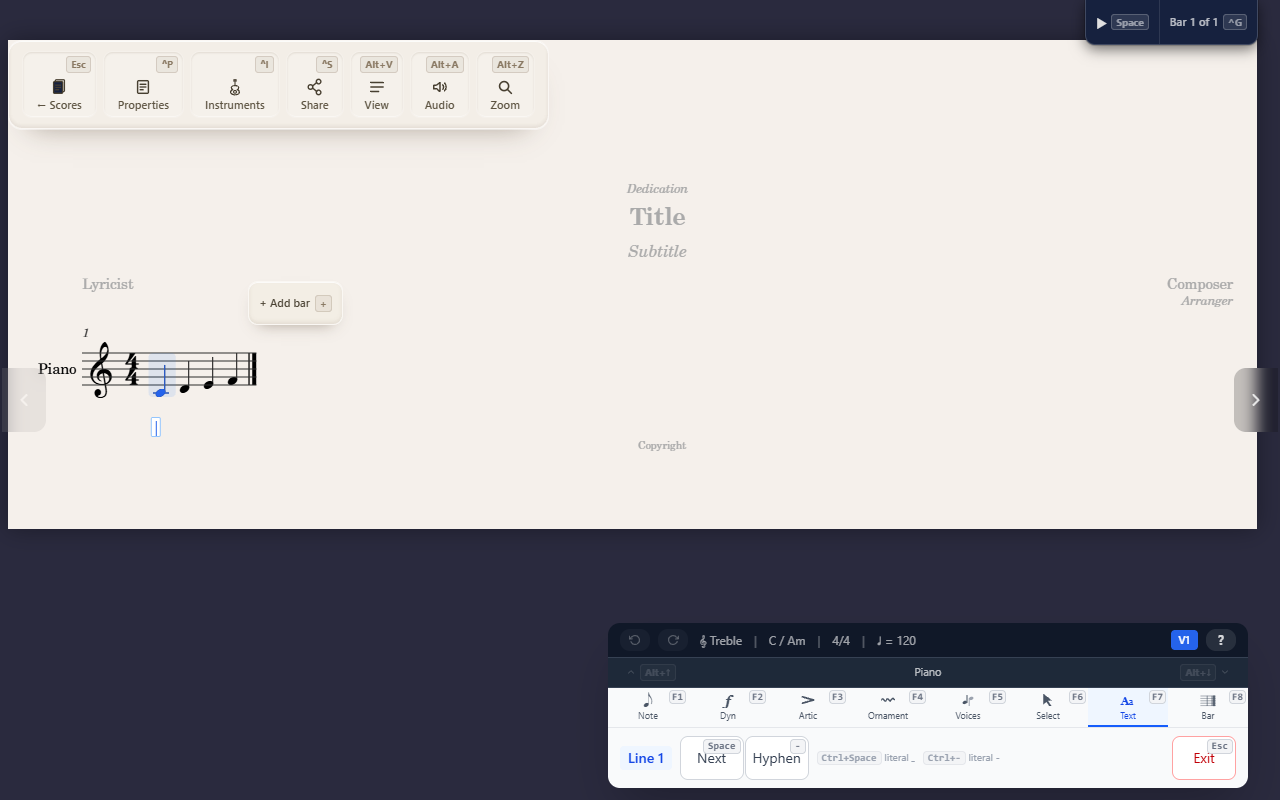
A lyric syllable attaches to a specific note — not to a free-floating text box — so it moves and reflows with the note it belongs to.
Entering lyrics mode
F7 L starts verse 1 below the staff; F7 U starts verse 1 above it
(for split-part choral writing); 2/3/4 start verses 2 through 4 as
additional stacked lines below the staff. A note can hold one syllable
per verse at the same time.
Typing
Once in lyrics mode:
- Space commits what you’ve typed and moves to the next lyric-eligible note (skipping rests, crossing barlines as needed).
- Hyphen (
-) commits the same way but marks the word as continuing, producing correct mid-word hyphenation automatically. - Space with nothing typed doesn’t add a blank syllable — it extends the previous note’s syllable over the current note with a melisma line, then moves on, so holding one syllable across several notes is just repeated empty Space presses.
- Backspace deletes a character; deleting the last one clears the syllable and steps back a note.
- Arrow keys move between lyric-eligible notes without committing
anything;
Tab/Shift+Tabjump to the first/last note of the next or previous bar. - Enter commits the current syllable and exits lyrics mode entirely —
it doesn’t switch verses. To add a different verse, exit and start it
with its own shortcut (
F7 U/2/3/4).
Tips
- Hyphenation and melisma extenders are both handled for you as you type — there’s no separate “mark this as a melisma” step beyond the empty-Space presses described above.