Exporting your score
Ctrl+S opens Share & Export — download the score as MXL, MusicXML or MIDI, render WAV or MP3 audio, or open Print Preview to save a paginated PDF.
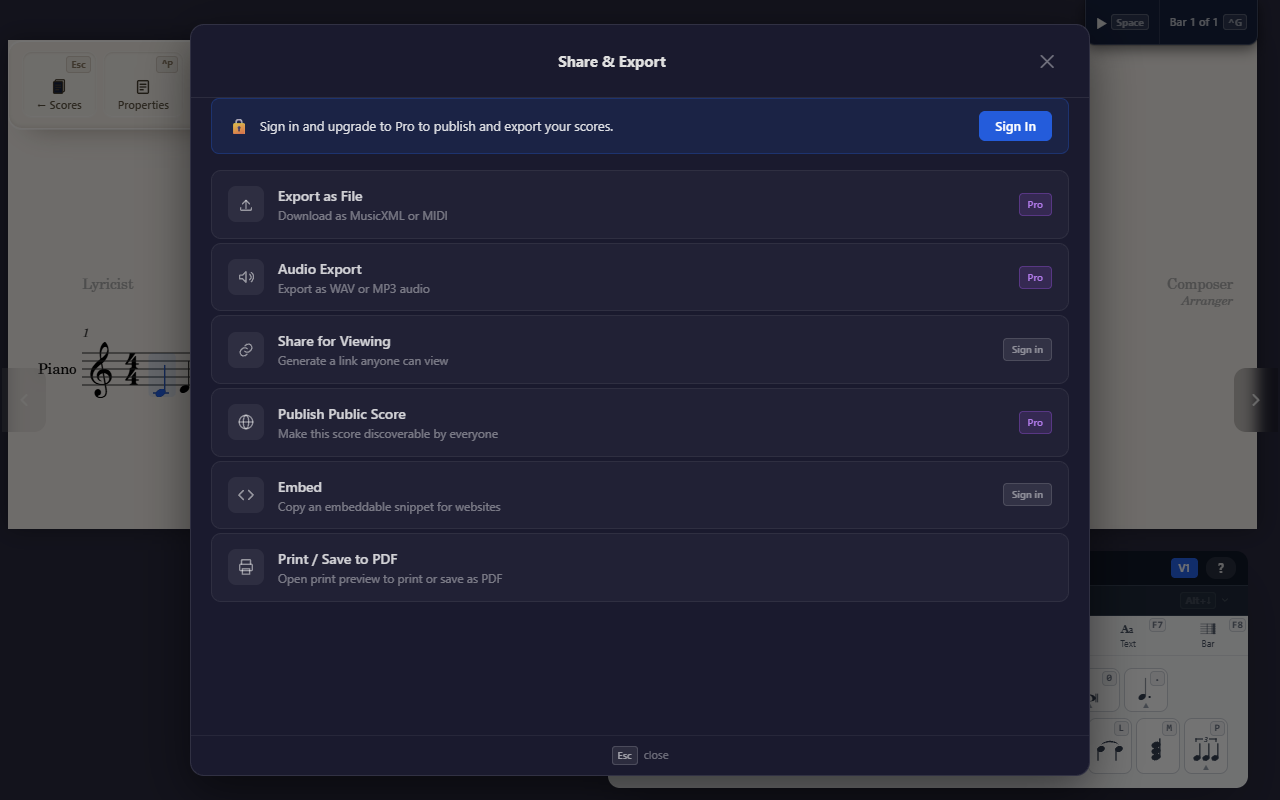
Ctrl+S opens Share & Export. Seven features live in this one panel;
this article covers the three that produce a file. (Share for Viewing,
Share for Editing, Publish Public Score, and Embed live in the same panel
but are a separate topic — sharing a link, not exporting one.)
Score file — MXL, MusicXML, or MIDI
Export as File downloads the score itself. Pick a format, then Export:
- MXL — compressed MusicXML (recommended; smaller, still opens anywhere MusicXML does).
- MusicXML — uncompressed XML, for tools that don’t accept
.mxl. - MIDI — a Standard MIDI File for playback in other software. It carries note timing and pitch, not notation — courtesy accidentals, text, and layout don’t survive the round trip.
Requires signing in on a Pro (or Team) plan.
Audio — WAV or MP3
Audio Export renders the score’s own playback to an audio file — WAV (lossless, larger) or MP3 (compressed, smaller) — with a progress bar while it renders. Also Pro-gated.
Print / Save to PDF is free for everyone, no sign-in required. It opens Print Preview, which lays out a real paginated PDF — the Bravura music font and text fonts embedded, not a screenshot — using the score’s configured paper size and orientation.
There’s no page-range or per-part picker inside Share & Export itself: whatever’s currently visible is what prints. To leave a part out, hide it first (the View panel’s visible-parts toggle), then open Print Preview.
Tips
- MusicXML/MXL round-trips into other notation software (Sibelius, MuseScore, Finale, and others); MIDI doesn’t — it’s for playback, not restoring notation.
- Bringing a file the other way? See Importing and scanning sheet music.