Narrowing what a selection affects
A filter narrows which events inside an existing range selection an operation touches, without changing what's highlighted.
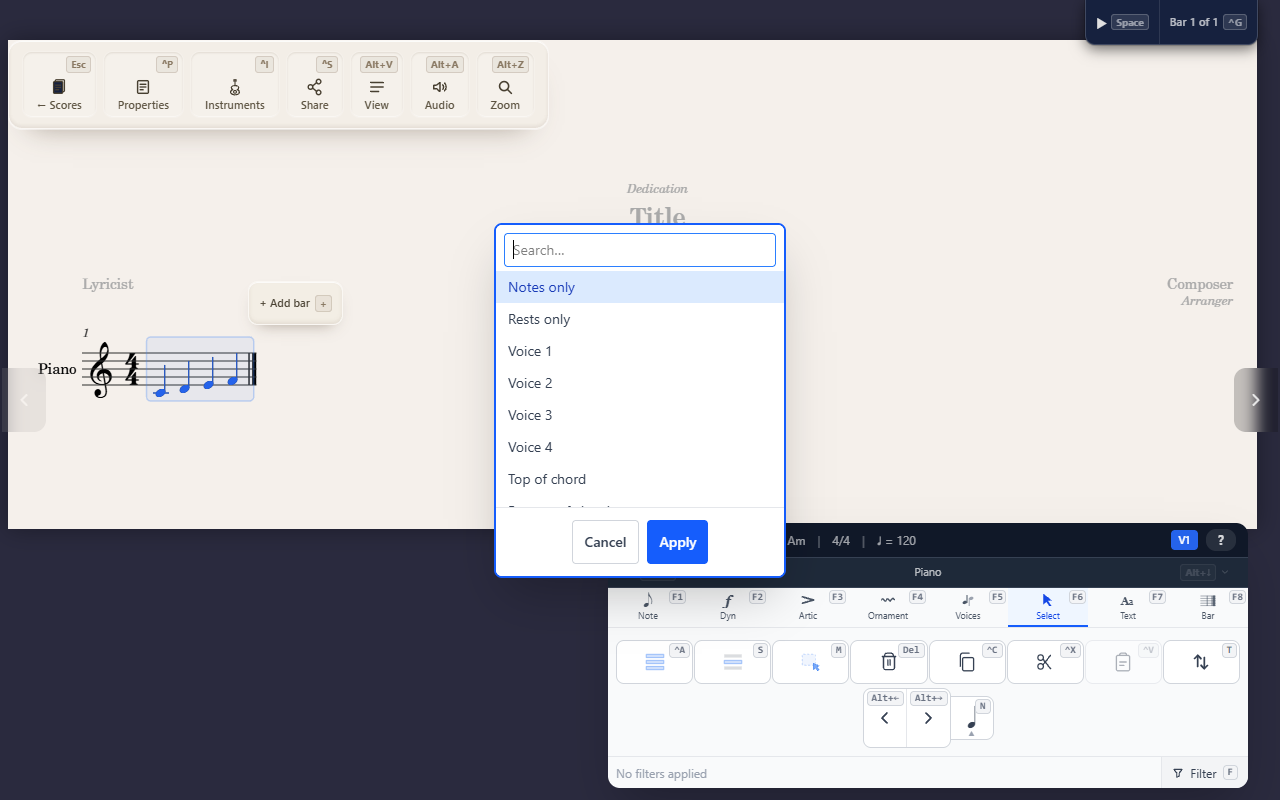
A filter doesn’t change what’s highlighted — it narrows which events inside that highlight an operation actually touches. Select a measure across all four voices, filter to “Voice 2,” and Delete, Transpose, or Nudge now only affect voice 2’s events, even though every voice still looks selected.
Opening the filter editor
F6 F opens the filter editor. Available filters: Notes only, Rests
only, Voice 1–4, Top of chord, Bottom of chord, 1st note only, Lyrics,
Dynamics.
Combining filters
With two or more filters active, a Match: ALL / ANY toggle appears — ALL requires an event to satisfy every active filter (a logical AND), ANY requires just one (a logical OR). Toggle it with the left/right arrow keys while the filter editor is open.
Clearing
F6 X clears the whole filter chain in one step. The status bar always
shows the active filter (or “No filters”), with an inline way to clear it
from there too.
Tips
- A filter only affects a genuine range selection — a single collapsed cursor position ignores the active filter entirely, since there’s nothing to narrow.
- See Copying, cutting, and nudging a selection and Transposing a selection for the operations a filter actually changes the scope of.
- Top of chord and Bottom of chord also change which note interval stacking measures from — see Building chords by stacking intervals.